
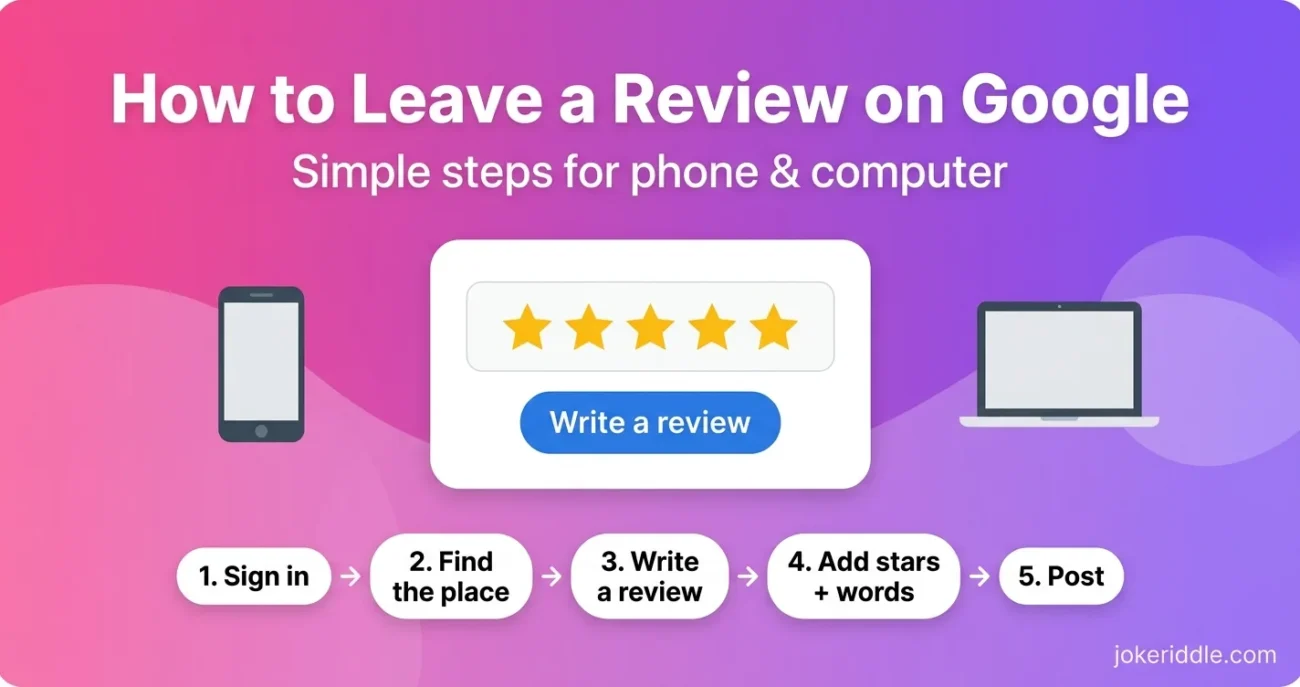
Here is how to leave a review on Google: sign in to your Google account, find the business on Google Maps or Search, and click “Write a review.” Pick your stars, add a few honest words, and press Post. Your review goes public with your Google name and photo.
Leaving a review takes about a minute once you know where the button lives. The trouble is that Google moves things around. You search, you scroll, and nothing says “review” anywhere.
This guide shows how to leave a review on Google on a computer and on a phone. It also covers what to do when the button won’t show up, what other people see next to your review, and how to fix a review after it goes live.
Maybe you own the business and want customers to find the review box faster. A ready-made Google review link skips the search step. Maybe you’re stuck on the words instead. Our guide to write a Google review helps with that part. And if you’re judging a website rather than a shop, see how we check an unfamiliar site in our Glossywise.com review.
What You Need Before You Leave a Review on Google
Four things make the process smooth. Check them first and you’ll avoid most problems.
- A Google account. Google only lets signed-in people post reviews. It does not have to be a Gmail address, and the section below explains why.
- A real place on Google Maps. Reviews attach to places like shops, restaurants, hotels and offices.
- Comfort with a public review. Google says all reviews are public. Your name and profile photo show next to your words.
- An honest experience to share. Google removes reviews that break its content rules, and it does not bring them back.
How to Leave a Review on Google From a Computer
You can post from Google Search or from Google Maps. Both lead to the same box.
- Sign in to your Google account in your browser.
- Search for the business name on Google, or open Google Maps and search there.
- Click the business profile. On Search it shows on the right. On Maps it opens on the left.
- Find the Reviews area and click Write a review.
- Choose your star rating. Five stars is the best score. One star is the worst.
- Type what happened. Add photos if they help.
- Click Post.
Your review stays on Google Maps until you take it down. If the button doesn’t show, you are most likely signed out.
How to Leave a Review on Google on Your Phone
The Google Maps app is the most reliable route on a phone. The steps are nearly the same on iPhone, iPad and Android.
- Open the Google Maps app and sign in.
- Search for the place, or tap it on the map.
- Tap the place’s name or address to open its page.
- Open the Reviews tab and tap the stars you want to give.
- Write a few lines about your visit. Add photos if you like.
- Tap Post.
You can also start from a regular Google search on your phone. Search for the business and look for “Rate and review” under its summary. Some places show several locations, so tap the one you actually visited.
Can You Leave a Google Review Without a Gmail Account?
Yes, you can. You need a Google account, but that account doesn’t have to use a Gmail address.
When the sign-in box appears, look for the option to create an account. Choose the personal-use option and enter an email address you already own. Google may change these menu words over time, so follow the on-screen prompts if yours look different.
Once the account exists, go back to the business and follow the same steps as above.
Can You Post Anonymously?
Not in the way most people hope. Google’s Help page says you can’t post an anonymous review. Your review shows the name and photo from your Google profile.
Some guides say a custom display name works. Google’s own page doesn’t confirm that, so check what your profile shows before you post. Whatever name you use, don’t pretend to be someone else. That breaks Google’s rules.
If privacy worries you, think about what you write too. Skip full names of staff, phone numbers and private details.
What to Write in a Google Review
A useful review answers three plain questions. What did you buy or use? What happened? Would you go back?
- Be specific. Details help the next reader more than big words.
- Stay honest. Fake or paid reviews break Google’s rules.
- Post soon after your visit, while the facts are fresh.
- Keep a calm tone, even when you’re unhappy. Facts carry more weight than anger.
Here is how a weak review compares with a helpful one:
Weak: “Great place.”
Helpful: “Quick service. My order came in ten minutes, and the staff fixed a mistake right away.”
Why it works: Details show readers what to expect.
Weak: “Worst ever!!!”
Helpful: “I waited 40 minutes past my booking, and no one told me why. A clear estimate would help.”
Why it works: Calm facts are easier to trust than anger.
Weak: “Good prices.”
Helpful: “Prices matched the menu, and there were no surprise fees at checkout.”
Why it works: It answers what a buyer actually worries about.
These lines are made-up examples to show the difference. They are not real reviews.
Why the Review Button Won’t Show (and How to Fix It)

Sometimes the button is missing or the post fails. These are the usual causes.
- You’re signed out. The review box only appears when you’re signed in to a Google account. Sign in and reload the page.
- The place is permanently closed. Google’s community answers say you can’t review a place that has closed for good.
- You picked the wrong listing. Some businesses have many locations. Tap the exact one you visited.
- Google removed a past review. Google doesn’t reinstate removed reviews. Read its content rules before you post again.
- Search hides the button. Open Google Maps instead, or switch between your computer and your phone.
How to Edit or Delete a Google Review You Posted
You can change your mind at any time. If the menus look different on your device, Google’s own review help page shows the latest steps.
On a computer:
- Open Google Maps and sign in.
- Click Your contributions, then Reviews.
- Click More next to the review.
- Choose Edit review or Delete review and follow the prompts.
On a phone:

- Open the Google Maps app.
- Tap Contribute, then View your profile.
- Tap See all reviews.
- Tap More next to the review, then choose Edit review or Delete review.
When you edit a review, the date of your last edit becomes its post date.
Frequently Asked Questions
Can the business delete my Google review?
Owners can’t simply delete it. They can ask Google to remove a review that breaks its policies. Google decides.
Does Google pay people to leave reviews?
No. Google says reviews are voluntary and it doesn’t pay reviewers.
Can I leave a Google review for a website?
Usually not. Google reviews attach to places and business profiles. A website with no profile on Google Maps has nowhere to hold one. That’s why site review pages like ours exist.
Is a Google Play review the same thing?
No. App reviews live on the app’s page in the Play Store and are separate from Google Maps reviews.
How long should my review be?
There’s no set length. Two or three specific sentences often beat a long, vague paragraph.
The Short Version
The steps for how to leave a review on Google are short: sign in, find the place, tap Write a review, add your stars and words, then post. If the button won’t show, check three things in order: your sign-in, the exact listing, and whether the place is still open.
Keep your review honest and specific, and you can always edit it later from your Google Maps profile.


Leave a Comment